AI image editing examples, before and after.
See how a clear instruction can change one part of an image while keeping the rest of the scene consistent. Each example below was submitted to the named ImageGen Studio model; we include the actual source, output, and a concise version of the tested prompt.
These are individual model outputs, not a promise of identical results. The lamp, living-room, and console sources were AI-created for this demonstration. The outfit example uses a provided portrait. Use only images you have the rights and consent to edit and publish.
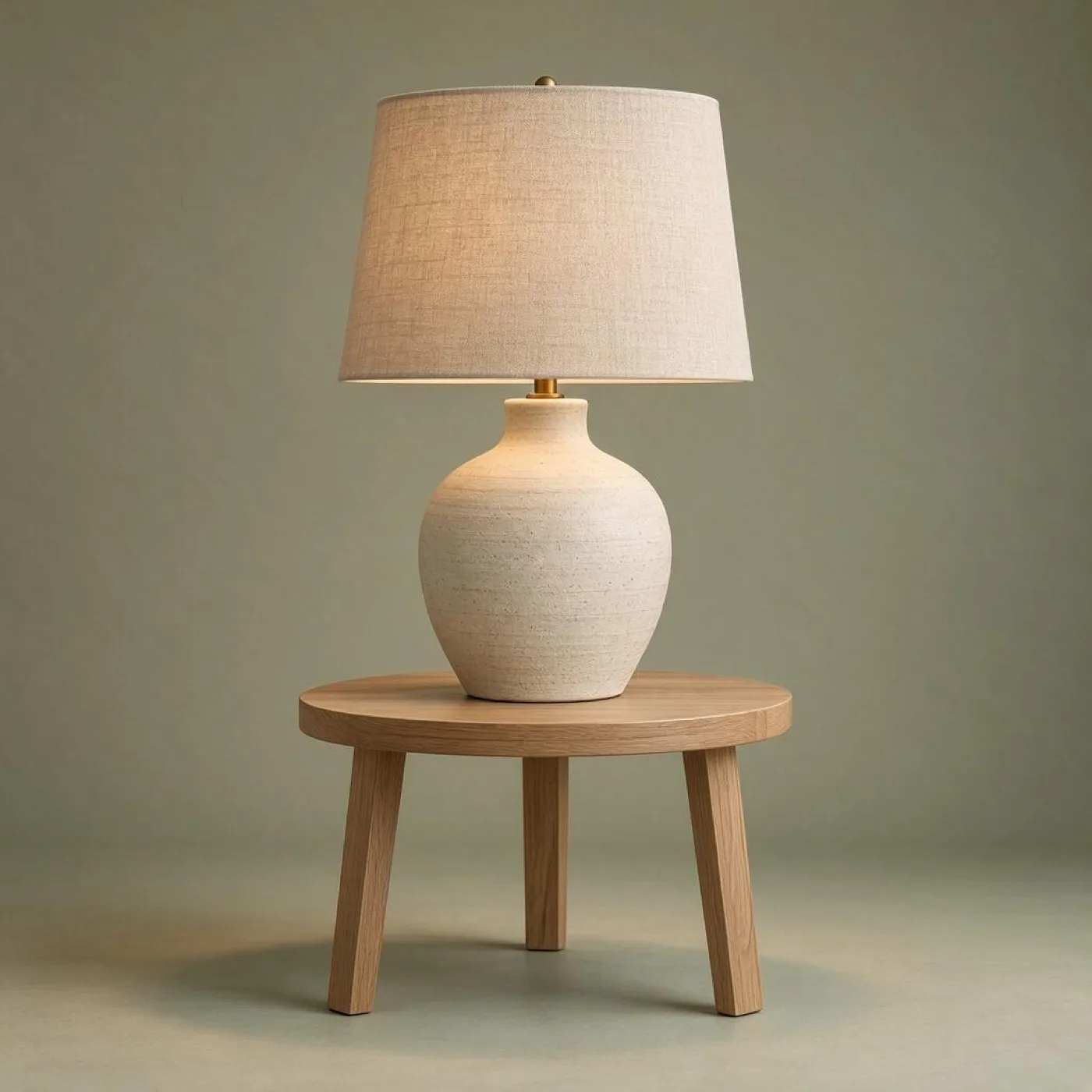 Background replacement · Seedream 5.0 FlashChange a product-photo backgroundKeep the lamp and table while replacing the neutral room with a sage studio backdrop.
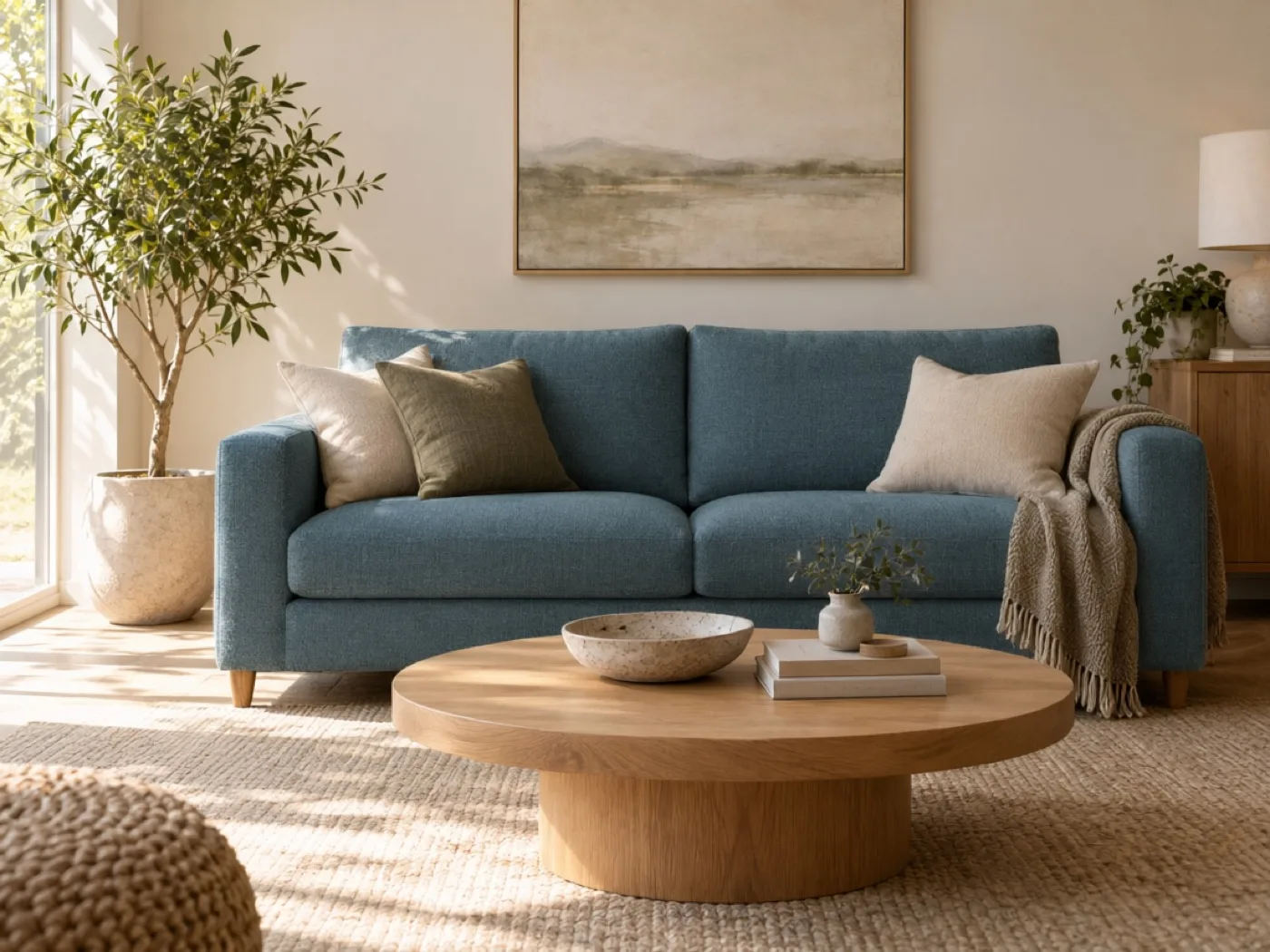 Color and material · Qwen Image 3.0 ProChange sofa color with AIPreview a different upholstery color while preserving the sofa shape and room.
 Object removal · Wan 2.7 ProRemove objects from an imageAsk the model to remove two small decor items and reconstruct the tabletop.
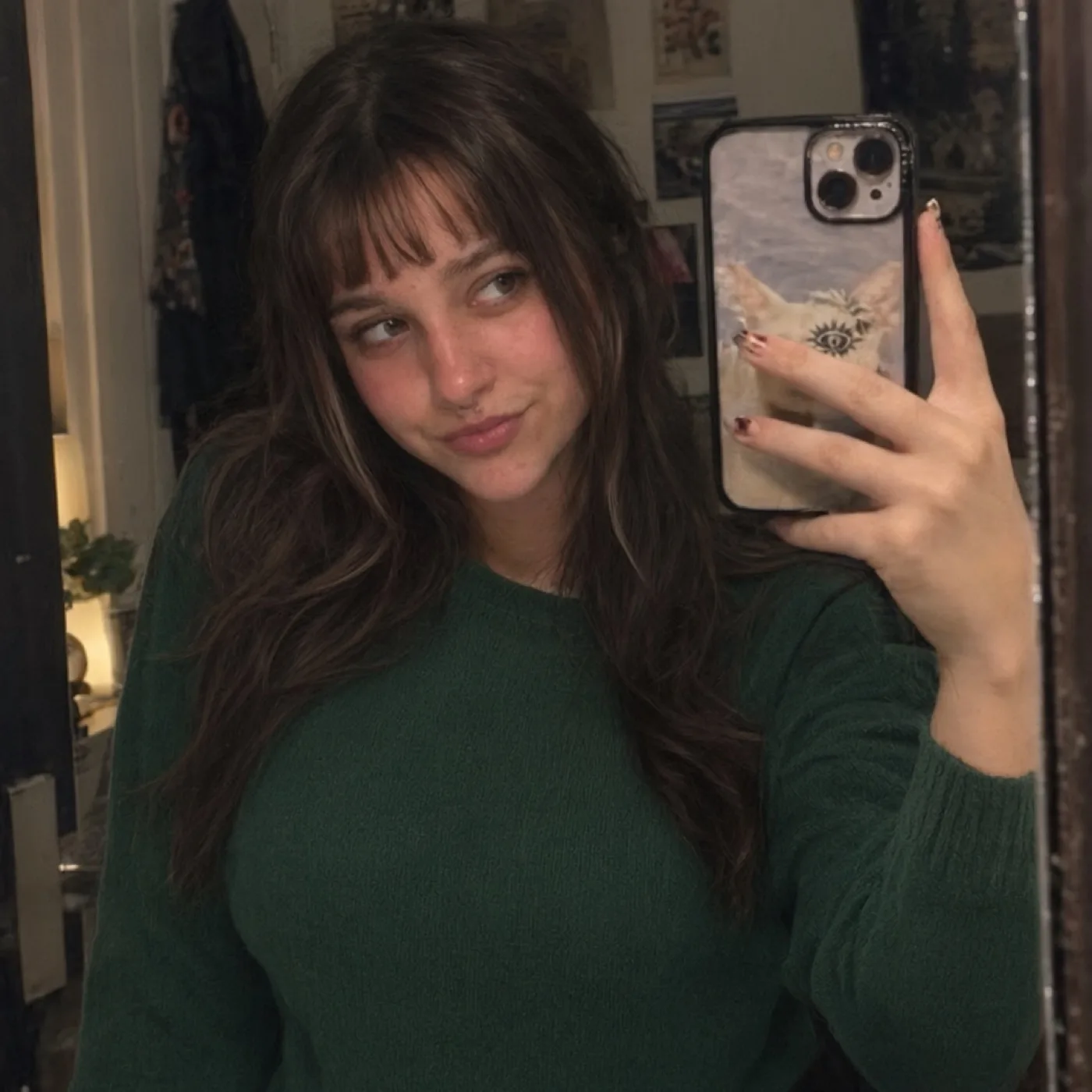 Outfit variation · Qwen Image 3.0 ProTry an outfit color variationSee a modest clothing edit with the original selfie framing and lighting preserved.
How to get more predictable image edits
Describe the desired change first, then explicitly name the parts that must stay the same. “Change the sofa upholstery to deep teal; keep its silhouette, cushions, room layout, and camera position unchanged” gives the model a narrower task than “make this room better.” Our AI image-editing prompt guide explains the pattern in more detail.
Choosing an editor for the job
ImageGen Studio lets you select among Wan 2.7 Pro, Qwen Image 3.0 Pro, and Seedream 5.0 Flash for image edits. Different models can interpret the same source and prompt differently. Check the controls and estimated credit cost in the image editor before submitting a generation.
Questions about these examples
Are these stock photos or generated results?
The first three source scenes were created for this demonstration, then edited by the named production model. The outfit example begins with a provided portrait; it is not represented as a model-generated source image.
Will my edit look exactly like the sample?
No. Image models are generative, so the result can vary with the source image, wording, model version, and settings. The examples show what one submitted request produced.
Can I use any image I find online?
Only upload images you have permission to process and use. For portraits, obtain the subject’s consent, and avoid deceptive impersonation. Third-party model policies also apply.