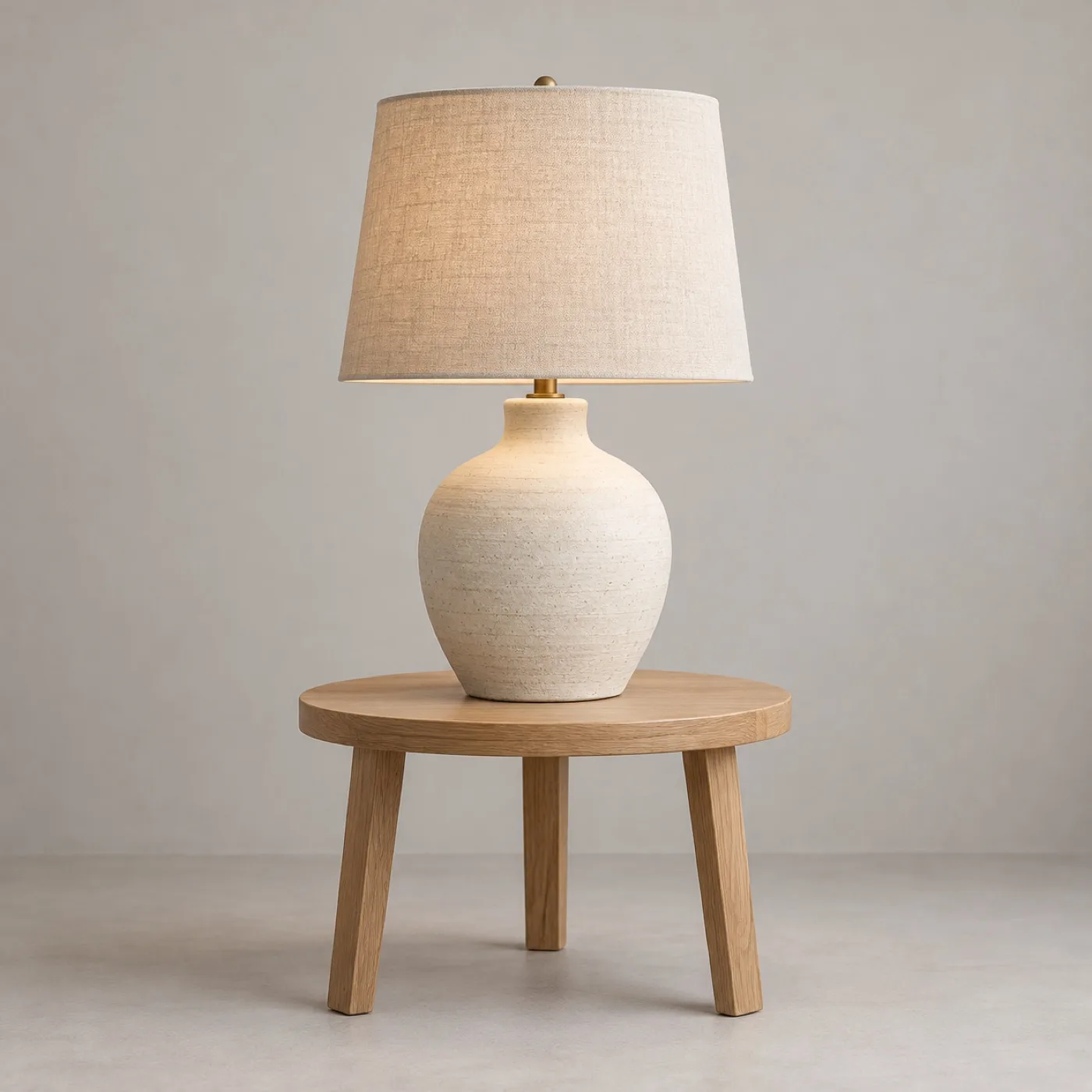
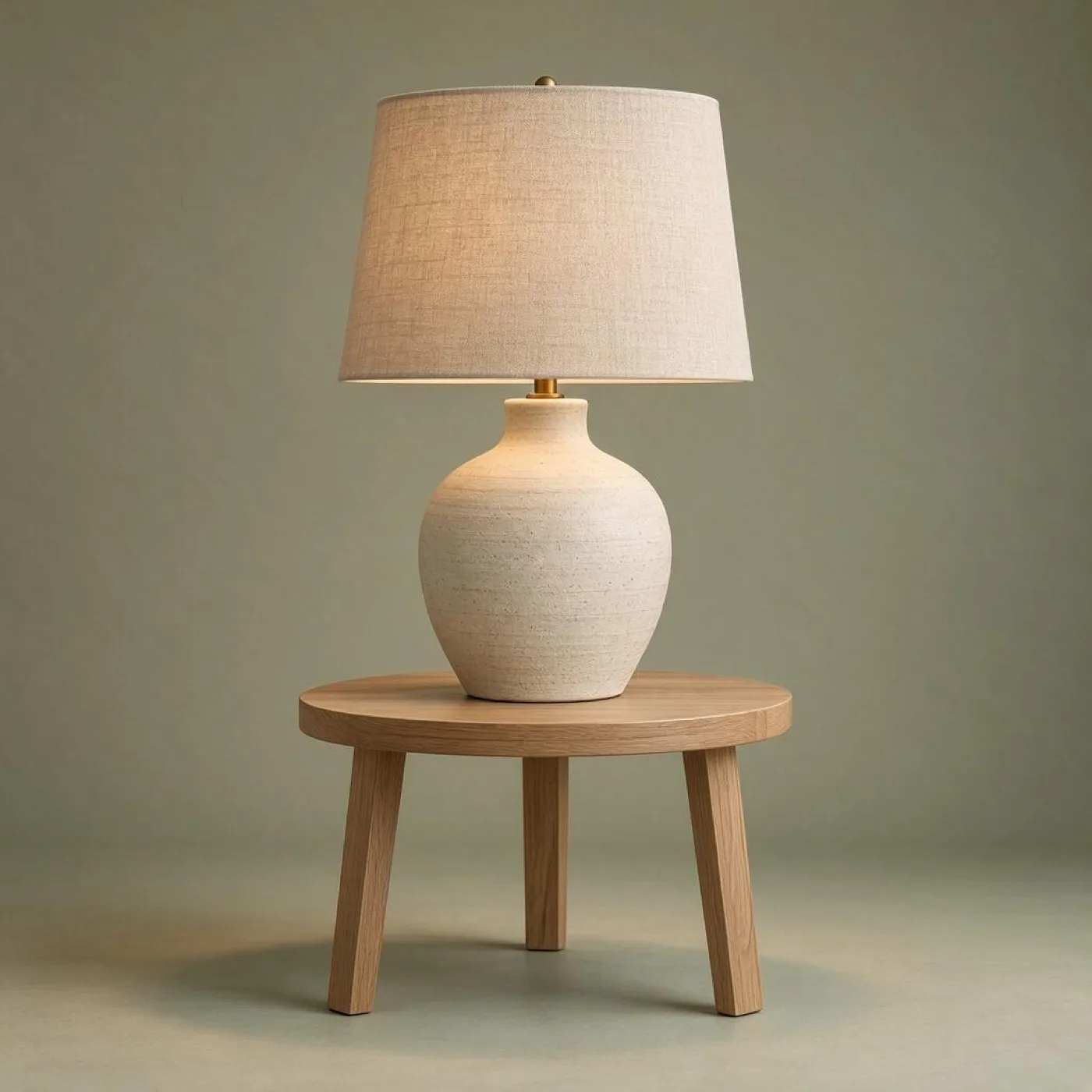
The prompt used for this background edit
Change only the background and lighting to a warm muted sage studio backdrop with a subtle soft directional shadow. Keep the ceramic lamp, oak table, shapes, materials, textures, proportions, details, and camera framing exactly unchanged. Photorealistic product catalog photograph. No text, logos, or watermark.
Why specify what should stay unchanged?
Image models synthesize pixels, rather than selecting a cutout in every case. Naming the product, surface, texture, and framing as invariants helps communicate which areas should remain visually stable. It can reduce drift, but it cannot guarantee a pixel-identical product.
The source image here was created for this demonstration; it is not a customer product or a claim about a commercial brand. We ran the prompt through the Seedream 5.0 Flash image-edit endpoint offered in the studio.
Try a background replacement
- Upload a product image with a clearly visible subject and clean edges.
- Describe the new setting, background color, and shadow direction.
- State which product details must remain consistent, then review the output at full size.
For a fast background concept, choose a model and inspect its available controls and credit estimate in the AI image editor. See all before-and-after image editing examples.